


As children spend more time online, the boundary between healthy exploration and digital overload has blurred. Parents today face the daunting task of shielding kids from explicit content, cyber bullying, and screen addiction without entirely cutting them off from the educational benefits of the web. This is where digital wellbeing and parental control software like Qustodio becomes essential—not just as a tool for digital surveillance, but as an extra set of eyes and boundaries to help kids develop healthy screen habits.
Qustodio stands as one of the prominent all-in-one solutions in this space, and after a full school term of testing with my 13-year-old, here are our thoughts about the Qustodio Parental Control suite.
Account Setup
Getting started with Qustodio is predictably straightforward, and frankly, in the current era, it would be a major failure if it were difficult to connect. As a parent, you begin by creating an account on the main website or via the Qustodio Parents app on your own device.
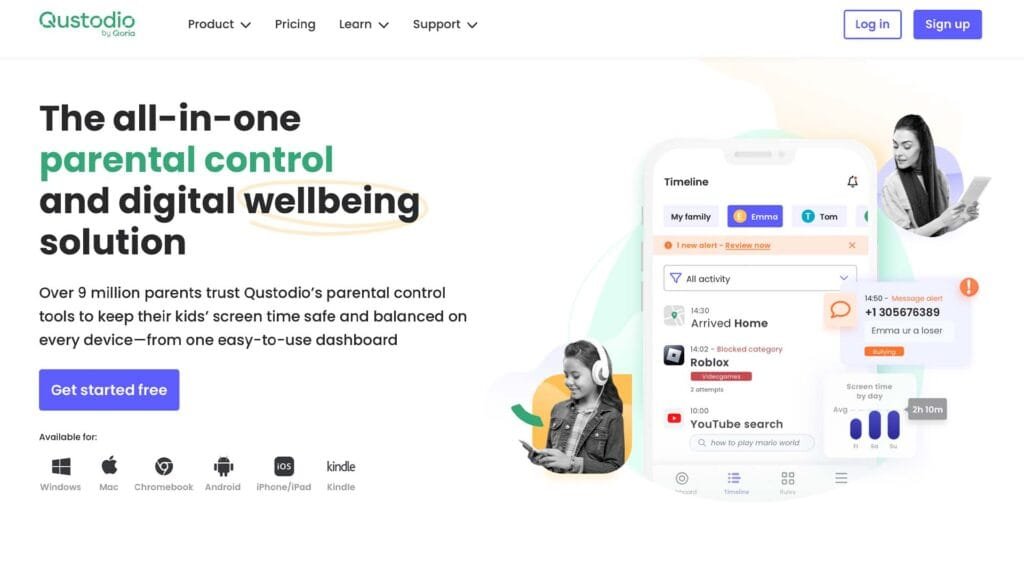
The setup wizard prompts you to enter your child’s name, birth year, and gender to create a profile. Qustodio uses this age data to automatically configure baseline, age-appropriate web filters right out of the box. From there, you are given a choice of what device your child uses so the system can generate the exact configuration steps required for that specific platform.
Software Installation on Devices
The installation experience varies significantly depending on whether your child uses Android or iOS, reflecting the underlying security models of each ecosystem.
For Android devices, you download the Qustodio Kids app from the Google Play Store. The app guides you through granting several deep system permissions, including Accessibility services and Device Admin rights. This ensures the app cannot be casually uninstalled by a tech-savvy child. If you want advanced features like call and SMS monitoring, you will need to side load a specialised version directly from Qustodio’s website, as Google’s standard Play Store policies restrict these permissions.
For iOS devices, Apple’s strict sandboxing means installation requires configuring a configuration profile and a local Virtual Private Network (VPN) on the device. While Qustodio guides you through this seamlessly via on-screen prompts, it is a slightly more technical process that can take a bit longer to fully authenticate. Beyond mobile ecosystems, Qustodio also offers comprehensive software support for Windows, macOS, Chromebooks, Kindle devices, and major browsers like Chrome, Safari, Edge, and Firefox.
Visibility and Control
Once installed, Qustodio shines brightest through its clean, near real-time parent dashboard, which provides unmatched visibility into your child’s daily habits.
The web filtering accurately categorises millions of websites across more than twenty-five predefined categories such as adult content, violence, and gambling. Parents can choose to allow, block, or receive an alert for each specific category. The system also effectively forces SafeSearch on Google, Bing, and YouTube to catch harmful search queries before results display.
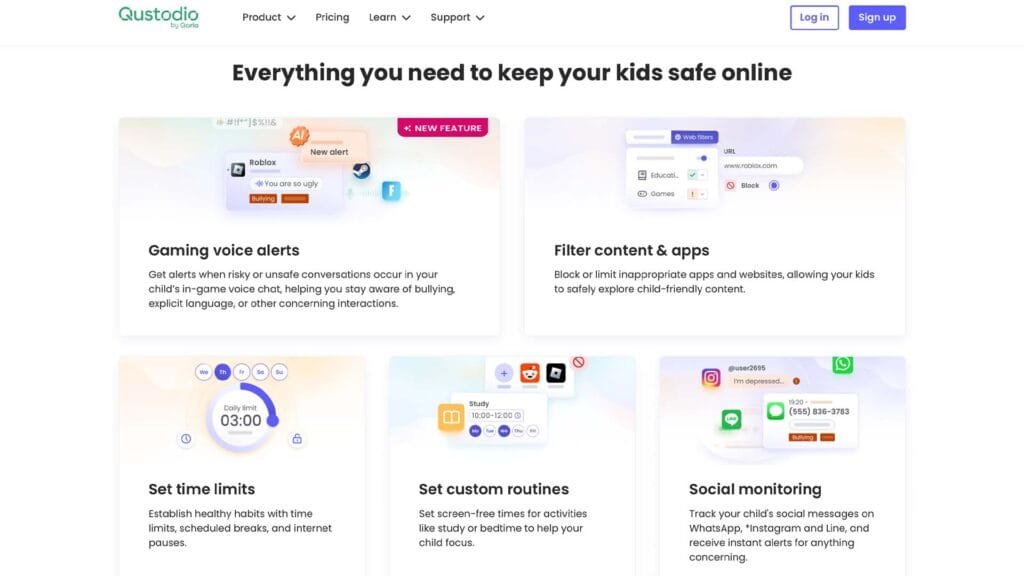
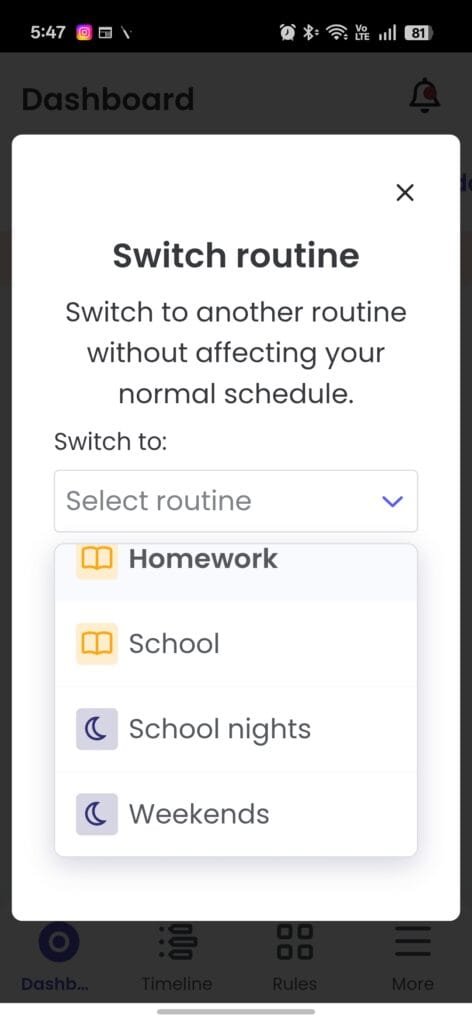
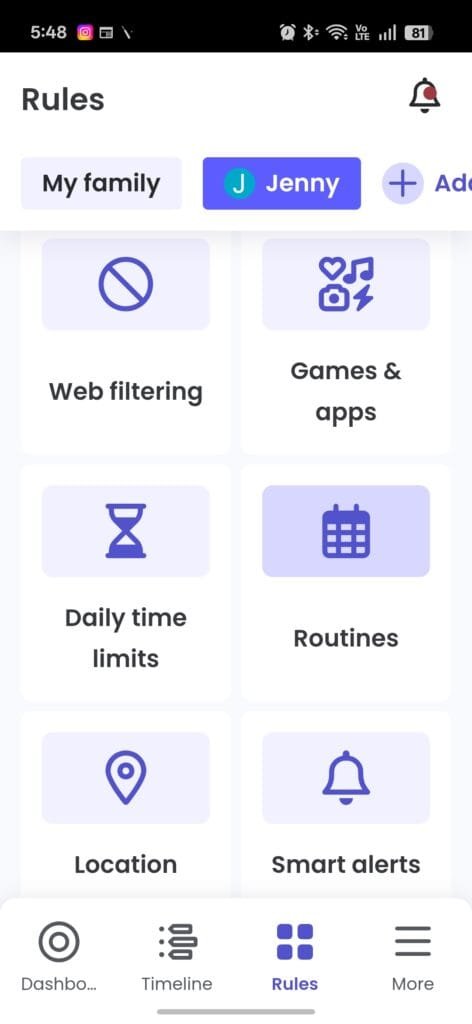
Screen time rules allow parents to set a blanket daily screen time allowance in fifteen-minute increments, or they can map out specific routines like Bedtime, Study, or Focus. When time runs out, the device locks completely, though it can still be configured to allow emergency calls.
Instead of just blocking the whole device, you can use the app and gaming management features to set specific time constraints on a per-app basis. This means you can limit TikTok to forty-five minutes a day while leaving educational apps unblocked. On the Complete plan, Qustodio can even monitor in-game voice chat triggers on popular platforms like Fortnite and Roblox. Additionally, the live GPS tracking is highly accurate, providing a clear map and a historical timeline of where your child’s device has been throughout the day.
The Parental User Experience
As a parent, I wanted something that was quick and easy… A set and forget if you will. But I underestimated how granular the controls were and, while the account setup was very quick the actual setup of routines took a bit of time.
As a default, the options in play are School, Homework, School Nights and Weekends. Each with their own timings, and specific availability of apps and Internet. Understandably, the nights option is essentially: Device Locked.
Both School and Homework were tweaked to minimise distractions with certain app and websites — gaming, entertainment, news, social media and shopping — blocked. As we began testing, we quickly found that some sites were inadvertently caught in these filters and needed to tweak the rules via exception. In theory; easy done, but the broad capabilities of the app, and the fact that different routines can have different settings makes this potentially troublesome to navigate.
To cover this: I recommend creating a routine called “unlocked” or something like it that has monitoring, but minimal restrictions on access until you tweak all of your routines to everyone’s liking.
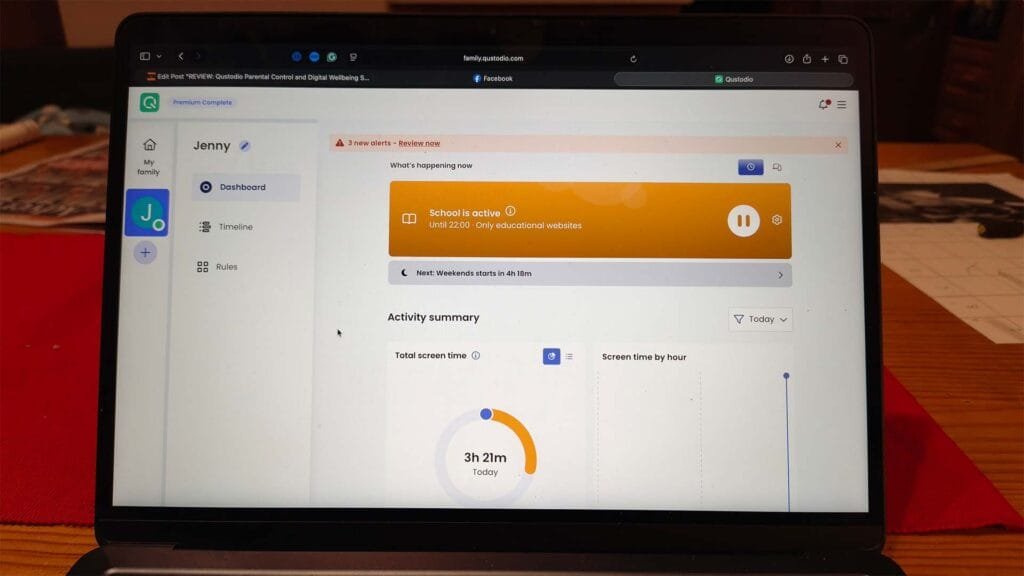
Once setup to your (less important your kids) liking, the app just exists. Notifying you of what you’ve asked it to, monitoring your kids Internet and App usage, and providing some protection against harmful online content. In my book, it’s definitely a winner.
The Kids Experience
We’ve been using the Google Family account setup for some time on our daughter, Jenny’s phone to manage screen time. But adding the Qustodio software with active monitoring of web activity on her devices was a higher level of oversight. We had discussion with her about why we’re doing it (developing healthy screen habits, and some protection from the “bad things” on the Internet) and got going.
This was not without it’s friction though, because having limitations on when her laptop could be used, and blocking access to certain things was not a popular decision. It did however, give us some better insight into how and when (particularly how early, and late) the laptop was being used.
Generally speaking — once the routines were setup — Qustodio was was not intrusive to her daily use of phone, or laptop. The only real “issues” were when she was doing homework later at night and either lost internet access, or the laptop locked due to the school nights routine kicking in. Both issues that are easily resolved by changing the routine from an adults device, to one which had the necessary access.
There’s Room for Improvement
While Qustodio is incredibly robust, it does have some friction points that can irritate parents and children alike.
Based on reports online (my daughter is on a Pixel phone): The most prominent drawback is the iOS disadvantage. Because of Apple’s operating system restrictions, the iOS version of the child’s app is noticeably less powerful than the Android version. Features like call and text monitoring, social media message scanning, and the instant Panic Button are completely unavailable on iOS due to sandboxing of apps.
There is also a lack of an in-app request system. If a child hits their screen time limit (total or app based) or needs to access a web page that is accidentally blocked by a strict filter, there is no way for them to send an in-app request for more time to the parent, or to get to a website they genuinely need access to. The child is met with a hard block screen, requiring the parent to manually log into their own app to change the rules – not add an adhoc exception.
EDIT: After publishing this review, we received communciation from Qustodio that on iOS (not tested during this review) there is, in fact, the extra time request feature that was mentioned above.
Another is that the geofencing alerts can occasionally be delayed, provide false readings — based on address of larger locations like a school — or fail to trigger entirely; even though live location tracking works perfectly.
Finally, customer service is largely email-ticket based. Unless you pay for the premium plan tier that includes priority Care Plus support, resolving an unexpected bug has the potential to take some time.
Pricing and Availability
Qustodio operates on a freemium model with a few tiers tailored to different family sizes. The Free Plan protects exactly one device with basic web filtering and screen limits. For families with multiple devices, Qustodio offers two paid annual subscription tiers.
The Basic Plan costs AU$89.95 per year and covers up to five devices. It upgrades the experience by adding app blocking, daily time limits, location monitoring, and the ability to instantly pause the internet.
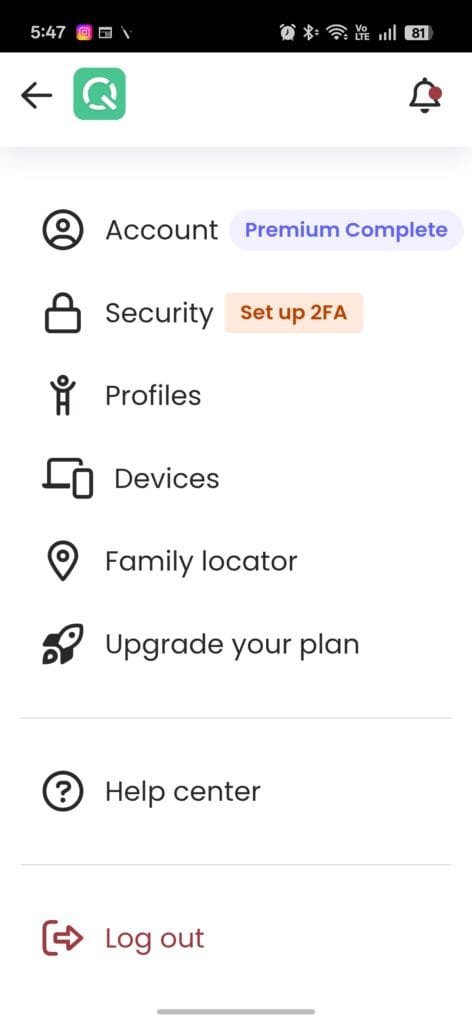
The Complete Plan is the top-tier option at AU$159.95 per year. It removes device caps to cover an unlimited number of devices in your household. It includes everything from the Basic tier alongside advanced features like per-app time limits, custom routines, YouTube monitoring, call and SMS tracking, gaming alerts, and priority Care Plus customer support.
It is important to keep in mind that Qustodio only bills annually, meaning there are no month-to-month payment options available. However, all direct website purchases are backed by a risk-free thirty-day money-back guarantee.
Conclusion
Qustodio remains one of the premier choices on the market for cross-platform digital parenting. Its real-time reporting dashboard is remarkably fast, its app-blocking rules are ironclad, and its ability to cover unlimited devices on the Complete tier makes it incredibly scalable for growing households.
If your household relies heavily on iOS devices, you may feel frustrated by Apple-imposed — albeit security focussed — limitations. However, if you are looking for a reliable, highly customisable tool to manage screen time boundaries, filter out harmful content, and keep tabs on physical location across Android, Windows, and Chrome devices, Qustodio is well worth the annual investment.